Custom Email Reports
With Backup for Workgroups , administrators can instruct Backup for
Workgroups to send customized email reports to easily stay informed of the daily
backup results for all their Clients.
Email reports can be sent in either HTML or plain text format, with many fields and options that can be customized to suit
any Backup for Workgroups installation. Receive the handy Daily Summary Email to view the status of all Clients
in a single, easy-to-read email or use the individual Backup Run Reports
to receive an email from each Client after a backup session has been completed.
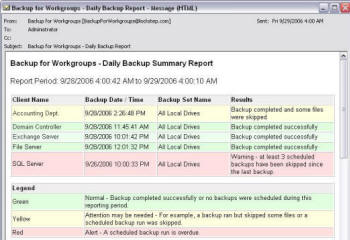
Daily Summary Emails - Everything you need to know in 1 report per day !
Backup for Workgroups can send you just ONE email summary per day
with all the information you need to keep on top of your data backups. This report lists all of your Backup Clients and
all the backups that these Clients performed or should have performed. With this information, you can now easily see the
status of your entire organization. Here's the top of a partial screenshot of a sample Daily Summary Email.
Click to view full-size image
How Can I Get Daily Summary Emails?
First, you will need to establish a connection between your Backup Server computer and your Email server, and then turn on the Daily Summary
Email feature.
- You need to make sure you have established the connection between Backup for Workgroups and your email server.
Backup for Workgroups generates these email messages and sends them to your email server for distribution.
- Go to the Backup Server software > Tools > Preferences > Email Server and enter your
Email Server information. This is the email server the Backup for
Workgroups will send your email to. If you want to send email to the
Internet you may need to use the relay server provided by your ISP.
- Test your settings with the "Generate Test Email" button to make sure
everything is working OK.
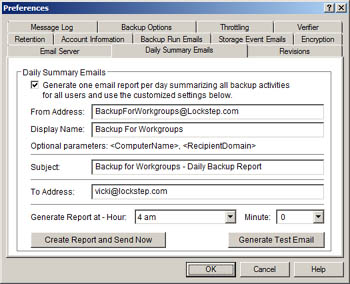
- Click on the next tab on the Preferences panel: "Daily Summary Emails"
- Check the "Generate one email report per day summarizing all backup activities..."
- Fill in the
"To Address" field with your email address, and make any adjustments to the
"Subject" field you like.
- Helpful hint: if you do not host your own Email Server, we suggest
also changing the "From Address" field to match exactly what is in the "To
Address" field. ISP Email Servers such as Yahoo! may have an easier
time handling your Daily Summary Email if the "From Address" is a known user on
their network (you). This allows the Daily Summary Email to be sent from
"you" to "you" - which is just fine.
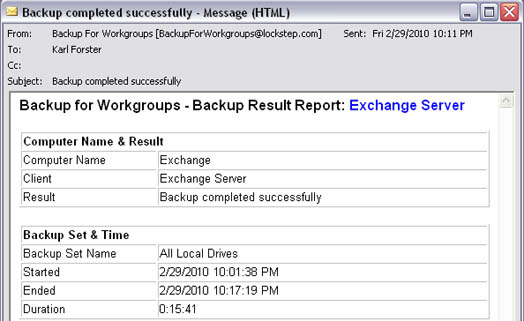
Backup Run Emails - Receive an email each time a backup is run
You can choose to receive separate, individual Backup Run emails as backup sessions are executed. The benefit of
receiving Backup Run emails is that you will receive the information immediately
after the backup completes; in other words, these are
more REAL TIME reports. Now, you do not have to receive Backup Run emails for each and every Backup Client.
You can choose to receive a copy of all the Backup Run emails for all your Clients - OR - you can pick and choose which Backup
Clients you really need to keep an eye on. And you can customize these messages to include information relative to the
computer getting backed up and the results.
The Big Benefit of Backup Run Email Customizing - When you want to receive Backup Run emails for some of your Backup
Clients, the customizing features can really come in handy and save you time. For example, let's say you have 10 computers
that are getting backed up in your organization. Of those, you really want to keep tabs on 5 servers. You can use the
customizing features to include the name of the computer in the "From" address display name, or in the subject line. Now you
can setup sorting rules in Outlook to automatically sort these incoming messages by computer name. No more hunting through all
your messages to find just one. We have had customers say this feature is "totally cool"
(seriously!).
How Can I Get Customized Backup Run Emails?
First, you will need to establish a connection between your Backup Server computer and your E-Mail server, and then turn on the Backup Run
Email feature.
- You need to make sure you have established the connection between Backup for Workgroups and your email server.
Backup for Workgroups generates these email messages and sends them to your email server for distribution.
- When you first
installed Backup for Workgroups, the Installation Wizard asked for this E-Mail
Server information, but just in case you skipped that part or just want to check
your settings, go to the Backup Server software > Tools > Preferences > Email Server and enter your
Email Server information.
- Test your settings with the "Generate Test Email" button to make sure
everything is working OK.
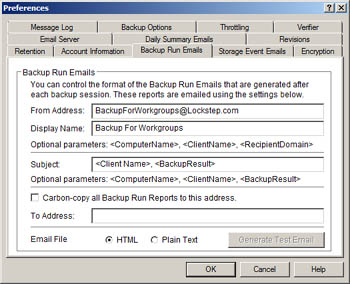
- Click on the tab on the Preferences panel: "Backup Run Emails"
- If you want to receive Backup Run Reports for every backup that occurs on every Backup Client, check the "
Carbon-copy all Backup Run Reports to this address" option, and fill in the appropriate "To Address" for the
emails to go to.
- OR -
If you want to receive Backup Run Reports from SELECTED Backup Clients, you can go to the Backup Clients themselves, run the
Backup Client, go to Tools > Manage Backup Sets and modify the backup set(s) of interest and proceed to the 5th panel called
"Special Items." On the Special Items panel, enter the email address at which you would like to receive copies
of the Backup Run reports for this Client. Repeat this process for all Backup Sets and all Backup Clients for which you
want to receive Backup Run Reports.
- Fill in the
"To Address" field with your email address. (For the Backup Run Emails, we
suggest leaving the default parameters in the "Subject" field, that way each
Backup Run Email Subject line is customized for the Client it is reporting on.)
- Helpful hint: if you do not host your own E-Mail Server, we suggest
also changing the "From Address" field to match exactly what is in the "To
Address" field. ISP E-mail Servers such as Yahoo! may have an easier
time handling your Daily Summary E-mail if the "From Address" is a known user on
their network (you). This allows the Backup Run Emails to be sent from
"you" to "you" - which is just fine.
Click to view full-size image
|